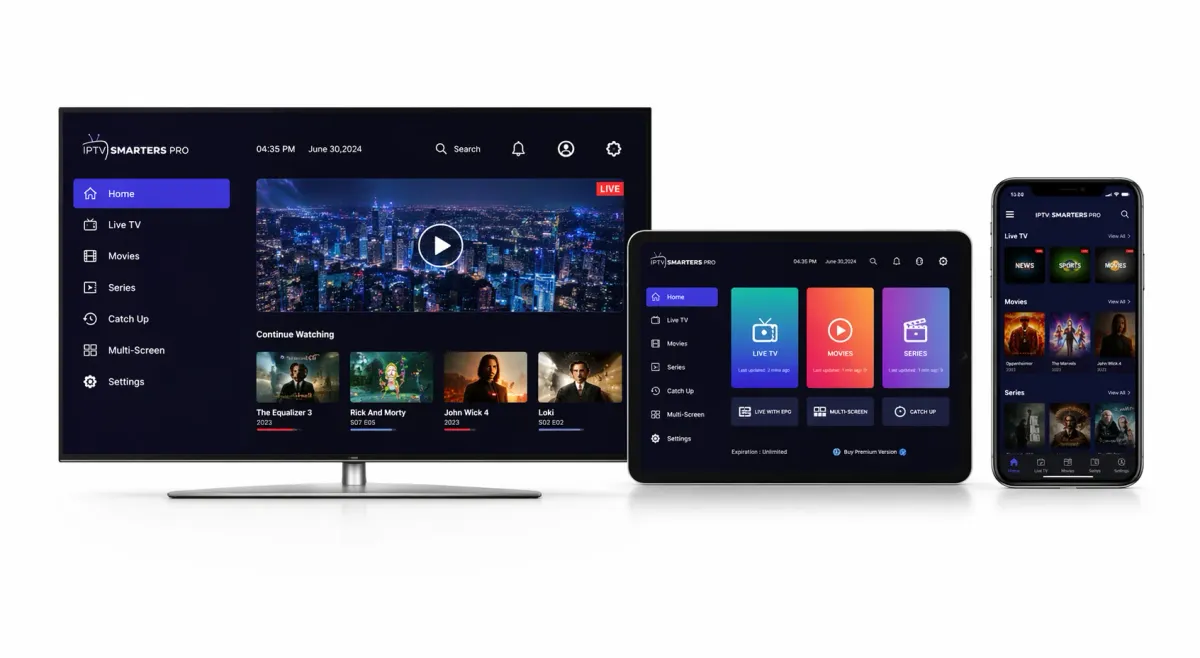
Want to use your Nordic IPTV subscription on a Samsung Smart TV? This guide explains how to install IPTV Smarters Pro, also known as Smarters Player Lite, and how to connect your IPTV access using Xtream Codes or an M3U playlist.
The setup is usually quick and does not require advanced technical knowledge. Whether you have a recent Samsung model or an older Tizen TV, you can follow the method that matches your device and region.
Before you install IPTV Smarters on Samsung TV
Samsung Smart TVs use Tizen OS, which works differently from Android TV. You cannot simply download and install an APK file on most Samsung TVs. Instead, installation usually happens through Samsung App Store, Smart Hub or a compatible USB method.
What you should prepare
Before starting, check that the basic setup is ready:
If you still need a Nordic IPTV subscription, choose a plan first so you have the login details ready before opening the app.
- A Samsung Smart TV connected to the internet by Wi-Fi or Ethernet
- An active IPTV subscription with server URL, username and password, or an M3U link
- Your Samsung remote control and access to the Apps section
Check whether your Samsung TV supports the app
IPTV Smarters or Smarters Player Lite is usually supported on Samsung Smart TVs from 2017 and newer when the TV runs Tizen 3.0 or a later version.
To confirm your model details, open Settings → Support → About This TV and check the software information.
Method 1: Install from Samsung App Store
For most users, the Samsung App Store method is the cleanest option. Depending on your region, the app may appear as “IPTV Smarters Pro”, “Smarters Player Lite” or simply under a Smarters-related name.
Step 1: Open Smart Hub
Turn on your Samsung Smart TV and press the Home button on the remote. This opens the Smart Hub interface where your installed apps and available services are shown.
Step 2: Go to Apps
Move to the Apps section from the main menu. This is where you can search for new apps and manage the apps already installed on the TV.
Step 3: Search for Smarters
Select the search icon and type “IPTV Smarters”, “Smarters Player Lite” or just “Smarters”.
If the app does not appear with the full name, try the shorter search term because app names can vary between Samsung regions.
Step 4: Install the app
Open the app result and choose Install. The download is usually fast. Once installed, you can add the app to your home screen so it is easier to open next time.
Step 5: Launch the app
Open IPTV Smarters Pro or Smarters Player Lite. Accept the first-launch terms if requested, then continue to the login screen where you can connect your Nordic IPTV access.
Method 2: Install using a USB stick
If the app is not visible in Samsung App Store, some compatible Samsung Tizen models can use a USB installation method. This is useful when the app is restricted by region or unavailable in the store.
Step 1: Format the USB drive
Use a USB stick formatted as FAT32. On a Windows computer, right-click the USB drive, select Format, choose FAT32 and confirm.
Step 2: Add the Tizen app files
Download the Tizen-compatible widget package from the official app source. Extract the ZIP file and place the extracted files directly at the root of the USB stick, not inside an extra folder unless the app instructions require it.
Step 3: Plug the USB into the TV
Insert the USB stick into your Samsung Smart TV. On supported models, the app should appear in the app list or My Apps area. Open it from there when it appears.
Step 4: Move to IPTV configuration
After the app opens, continue with the login setup using Xtream Codes API or M3U URL, depending on the details provided with your subscription.
Method 3: Use Smart IPTV as an alternative
If IPTV Smarters is not available on your Samsung TV, Smart IPTV, often called SIPTV, can be used as an alternative player. It works differently because it normally uses the TV MAC address and an uploaded playlist.
Step 1: Install Smart IPTV
Search for “Smart IPTV” inside Samsung App Store and install it if available. Some versions may include a trial period before requiring a one-time activation.
Step 2: Find the MAC address
Open Smart IPTV on the TV. The app will display a MAC address on screen. Write it down carefully or take a photo so you can use it during playlist upload.
Step 3: Upload your playlist
From a phone or computer, open the Smart IPTV playlist upload page. Enter the MAC address and the M3U URL supplied by your IPTV provider, then submit the playlist.
Step 4: Restart Smart IPTV
Close and reopen the app on your Samsung TV. After refresh, your IPTV channels should load inside the Smart IPTV interface.
Add your IPTV login details
After installing the app, the next step is connecting your IPTV subscription. Most users will either receive Xtream Codes details or a full M3U playlist URL.
Login with Xtream Codes API
Xtream Codes API is often the easiest login method because it separates the server URL, username and password into clear fields.
After adding the account, the app loads your live TV, movies, series and sports categories automatically.
- Open IPTV Smarters Pro on your Samsung TV
- Select “Login with Xtream Codes API”
- Enter a profile name, username, password and server URL
- Press “Add User”
- Wait while the app loads channels, VOD and series
- Any Name: choose a simple name such as “Nordic IPTV” or “Samsung TV”
- Username: enter the username supplied with your subscription
- Password: enter the password exactly as received
- URL: enter the server address, usually in the format http://domain.com:port
Login with an M3U playlist URL
If your subscription details include a complete M3U link, use the playlist option instead of Xtream Codes.
Once saved, the app will read the playlist and load the available channels.
- Open IPTV Smarters Pro
- Choose “Load Your Playlist or File/URL”
- Select M3U URL
- Add a playlist name
- Paste the full M3U link
- Click “Add User”
Improve IPTV performance on Samsung Smart TV
After setup, a few small adjustments can improve streaming quality when using Nordic IPTV or IPTV Nordic on Samsung TV.
Use Ethernet when possible
Wi-Fi can work well, but Ethernet is often more stable for HD, Full HD and 4K IPTV streaming. A wired connection helps reduce buffering, especially during live sports or busy network hours.
Check your connection speed
As a general rule, aim for at least 10 Mbps for HD and around 25–30 Mbps for 4K. You can test your connection from the TV network settings or by using a speed test on another device connected to the same network.
Update or refresh the EPG
EPG, or Electronic Programme Guide, lets you see current and upcoming programmes. If it does not appear immediately, open the app settings and run a manual refresh when available.
Create a favourites list
Instead of browsing through the full channel catalogue every time, mark your most-used channels as favourites. This makes daily watching faster and more comfortable.
Common Samsung IPTV Smarters problems
IPTV Smarters does not appear in Samsung App Store
Try these options before giving up:
- Update the TV software from Settings → Support → Software Update
- Search for “Smarters” instead of the full app name
- Check whether the app is available in another Smart Hub region
- Use the USB method if your TV model supports it
- Use an external device such as Fire TV Stick or Android Box
Login error or unable to connect
This usually happens when one of the login details is typed incorrectly:
- Check that the server URL has no spaces at the start or end
- Confirm that the username and password match exactly
- Make sure the URL includes the correct port when required
- Try both Xtream Codes and M3U if your provider supplied both
- Contact your IPTV provider to verify the active details
Buffering, lag or frozen image
Playback issues are often related to network stability rather than the app:
- Use Ethernet instead of Wi-Fi when possible
- Restart your router and Samsung TV
- Lower the stream quality from 4K to HD if the network is weak
- Close other devices or apps using heavy bandwidth
- Ask your provider to check whether the issue is channel-specific
EPG or TV guide is empty
The TV guide depends on the data supplied with your IPTV access. If it does not load:
- Open EPG settings and refresh manually
- Wait a few minutes after the first login
- Restart IPTV Smarters Pro
- Confirm that your subscription includes EPG support
FAQ: IPTV Smarters Pro on Samsung TV
Is IPTV Smarters Pro free on Samsung Smart TV?
The app is often free to install under the name IPTV Smarters Pro or Smarters Player Lite. However, the app does not include channels by itself. You need an active Nordic IPTV subscription to watch live TV, VOD, movies and series.
Which Samsung TVs can run IPTV Smarters?
Many Samsung Smart TVs from 2017 and newer can run Smarters Player Lite or IPTV Smarters when the app is available for the TV region. Older models may need Smart IPTV or an external streaming device.
Are IPTV Smarters Pro and Smarters Player Lite the same?
They are very similar for normal users. In some app stores, the Samsung version may appear as Smarters Player Lite, while IPTV Smarters Pro is the name many people use when searching for the app.
Can I use the same subscription on more than one Samsung TV?
You can install the app on several TVs, but simultaneous viewing depends on your IPTV plan. Some plans allow one active stream, while others may support more screens.
Can I change the app language?
Yes. IPTV Smarters Pro supports multiple interface languages, including English. You can usually adjust the language from the app settings after installation.
Do I need a satellite dish for IPTV?
No. IPTV uses your internet connection. You do not need a satellite dish, traditional cable or separate decoder if your Samsung TV or external device can run a compatible IPTV app.
Conclusion
Installing IPTV Smarters Pro on a Samsung Smart TV is usually straightforward once you know which method works for your model. The App Store method is the easiest option, while USB installation or Smart IPTV can help when the app is not available.
After setup, you can use your subscription to watch Nordic channels, Scandinavian channels, European TV, international channels, sports, movies and series in HD and 4K directly on your Samsung screen.
Ready to connect your TV? Choose a Nordic IPTV subscription with fast activation, clear setup steps and customer support for Scandinavian viewers.